
Guide for Foundry VTT
Hex Maps in Foundry VTT
Create your hex map in Hexer, export as Universal VTT, and import it into Foundry as a ready-to-play scene. Grid alignment included.
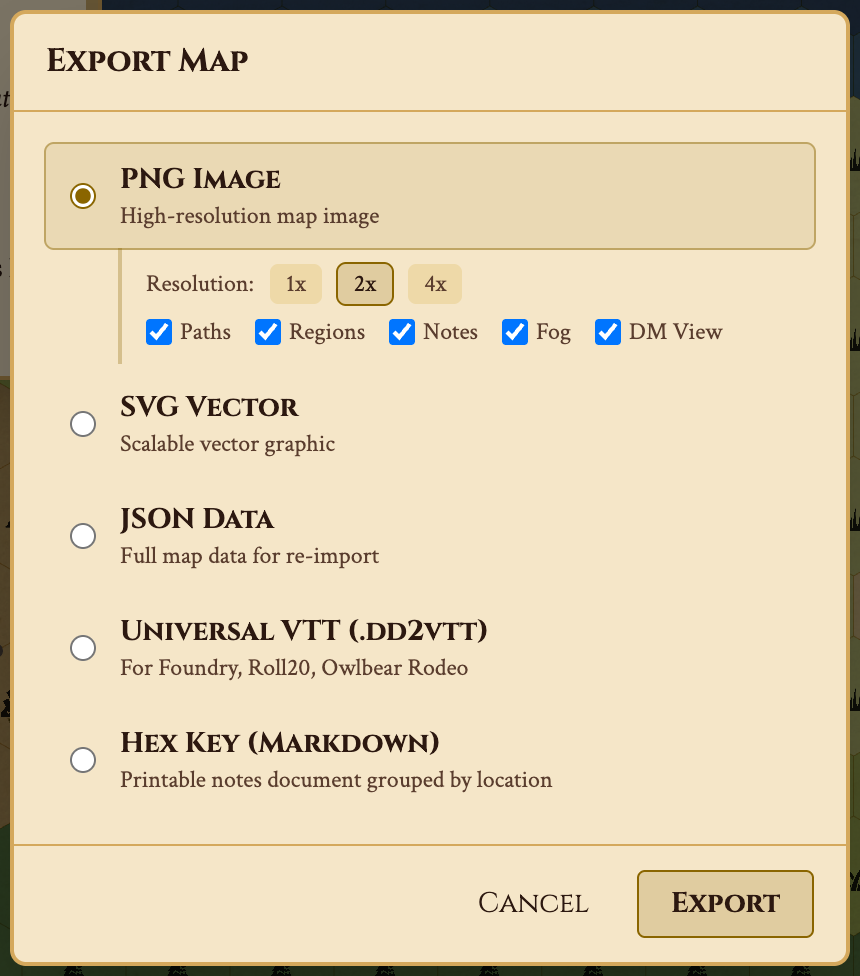
Pick a format and click Export to see how it works.
Step 1 — Create Your Hex Map
Open Hexer and build your map. Paint terrain with any of the 41 terrain types and 38 map features — forests, mountains, settlements, dungeons, sacred sites. All terrain types are free.
Add paths and roads to connect settlements. Draw regions to define territories. Attach DM notes to hexes with encounter details, secrets, and landmarks.
Use procedural generation to create a realistic starting point, then hand-edit to match your campaign vision.
Make the map you'll export to Foundry
Build it free in the browser, then come back for the export steps below. No account needed to start.
Open the EditorStep 2 — Export as Universal VTT
When your map is ready, open the export dialog and select Universal VTT (.dd2vtt). This format packages your map image together with its grid cell size and your blocked edges (as line-of-sight walls) into a single file.
There is no resolution to pick: Hexer exports at 4x, stepping down to 2x or 1x only when a very large map would pass the 8192-pixel texture limit Foundry enforces. If your map uses scale levels, choose which level to export first.
Click Export and save the .dd2vtt file to your computer.
Step 3 — Import into Foundry VTT
In Foundry VTT, create a new scene and use the free Universal Battlemap Importer module (Foundry has no built-in importer for this format). Select your .dd2vtt file.
Foundry reads the file and sets up:
- The map image as the scene background
- The grid size in pixels, matching Hexer's hex cells exactly
- Your blocked edges as line-of-sight walls
One thing it cannot set is the grid TYPE: the Universal VTT format has no field for it, so the scene arrives on a square grid. Step 4 flips it to hexes — a ten-second, one-time change per scene.
Step 4 — Verify Grid Alignment
Because the format cannot carry a grid type, every imported scene starts square — with the Universal Battlemap Importer or any other. Set it once — or click Copy Foundry macro in Hexer's export dialog and run it in Foundry, which does the same for the current scene:
- Open Scene Configuration > Grid
- Set grid type to Hexagonal Rows — Odd for a pointy-top map, or Hexagonal Columns — Odd for a flat-top one, matching the orientation you built the map in
- Leave the grid size alone — Hexer already wrote the correct value (the width of a pointy-top hex, the height of a flat-top one), and Foundry filled it in on import. Leave the background offsets at 0 too: the exported margin is sized so the hexes already sit on the grid
Now enable grid visibility and zoom in: the Foundry hex grid should sit exactly on Hexer's hex cells, with no offset nudging needed. The exported margin is sized to a whole number of hexes precisely so the grid seats on the first try.
Step 5 — Multi-Layer Underdark Scenes
If your Hexer map uses Underdark layers (Pro feature), export each layer separately as its own Universal VTT file. In Foundry, create a separate scene for each layer.
To link layers together so players can move between them:
- Multilevel Tokens module — teleport tokens between scenes at staircase hexes
- Stairway module — create visual portal connections between scenes
- DF Scene Navigator — quick scene switching for the DM
Place the connection points in Foundry at the same hex coordinates where Hexer has staircase or cave entrance features. This keeps the transition intuitive for players.
Tips for the Best Results
Large maps
A very large map exports at a lower resolution to stay under Foundry's texture limit. For a sharper scene, export a detail scale level, or split the area into several maps.
Fog of war considerations
Hexer's fog of war is per-hex and real-time during live sharing. Foundry has its own fog system that works per-token line of sight. You can use either approach — Hexer's fog for pre-session prep and narrative reveal, Foundry's fog for tactical in-scene visibility.
Also export a hex key
Export your map as a Hex Key document (Markdown) alongside the VTT file. This gives you a structured reference of every note, labeled location, and token by hex — useful for running the session without switching between Foundry and your notes app.
Start Building Your Foundry Map
Create a hex map, export as Universal VTT, and import into Foundry in minutes. Free to start, no account required.
Frequently Asked Questions
What is Universal VTT format?
Universal VTT (DD2VTT) is an open scene format that packages your map image, its grid scale, and its wall data into a single .dd2vtt file. Foundry VTT, Roll20, Arkenforge, and other virtual tabletops can import it as a scene (Foundry through the free Universal Battlemap Importer module), so you never have to eyeball the grid size by hand.
Does Foundry auto-detect the hex grid from Hexer's export?
Partly. The Universal VTT format carries the grid SIZE but has no field for grid TYPE — there is nowhere in the spec to say "these are hexes", so the importer creates the scene on a square grid. Switch it to the hex type once in Scene Configuration and everything lines up: Hexer writes the cell size Foundry expects and bakes an aligned margin, so the hexes seat on the grid without any offset nudging.
Can I export Underdark layers separately for Foundry?
Yes. Each layer (Surface, Caverns, Deep Caverns, The Underdark) exports as its own Universal VTT file. In Foundry, create a separate scene for each layer and use a module like Multilevel Tokens or stairway teleporters to link them. Players can move between layers via staircases or cave entrances.
What resolution should I export at?
You do not have to choose. The Universal VTT export picks the sharpest resolution that fits the 8192-pixel texture limit Foundry and most VTTs enforce: 4x on most maps, stepping down to 2x or 1x for very large ones. The export dialog warns you if a map is too big even at 1x. The 1x/2x/4x choice applies to PNG export.